Open Options in the updated game for the current control list, then adjust mouse sensitivity and the box-collision setting if movement feels uncomfortable. These options are explicitly covered by Update 1.3. Older launch posts asking where they are can describe an earlier version.
Keyboard and mouse are required by the official PC requirements. There is no verified controller configuration or Steam Deck compatibility guide in the material linked here, so do not assume that every desktop input will translate cleanly to another device.
Start with the current in-game prompts
Update 1.3 adds the controls list to Options and allows boxes to be interacted with and thrown using the left and right mouse buttons. The announcement does not assign each mouse button to a specific action in its text. Follow the current prompt to establish that mapping before throwing a case you meant to place.
Launch-era players also reported keyboard inputs. A community reply lists E for pickup, Q for throwing and F for inspecting the cover. Treat these as reported inputs to check against the current Options list, rather than a guarantee that all bindings and interactions are unchanged after patches.
| Action or setting | Useful check |
|---|---|
| Pick up a case | Follow the highlighted item's prompt; E was reported by a launch player |
| Throw or interact with boxes | Mouse-button support was added in 1.3; confirm the action shown on screen |
| Inspect cover | F was reported by a launch player; verify in Options |
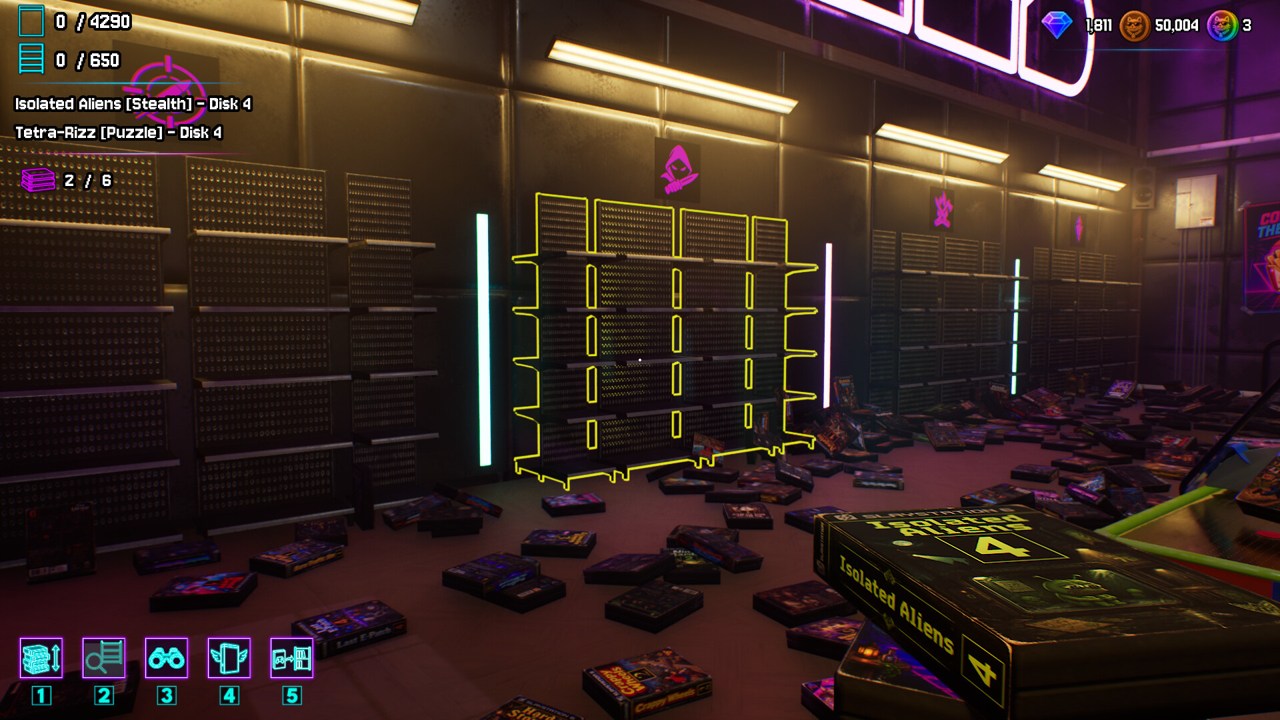
| Select an ability | Promotional imagery shows slots labelled 1–5; check owned abilities and current bindings |
| Mouse sensitivity | Available after the launch updates; lower or raise it to suit your movement |
| Field of view | 1.3 fixes the value resetting after a saved game is loaded |
| Box collision | A toggle was added in 1.3, with collision disabled by default |
The launch keybindings thread asks for remapping, but that request is not evidence that arbitrary remapping is now supported. A controls list and a rebinding interface are different features. If you cannot find a rebinding option, do not follow instructions for editing a guessed configuration file.
Reduce camera shake before changing everything else
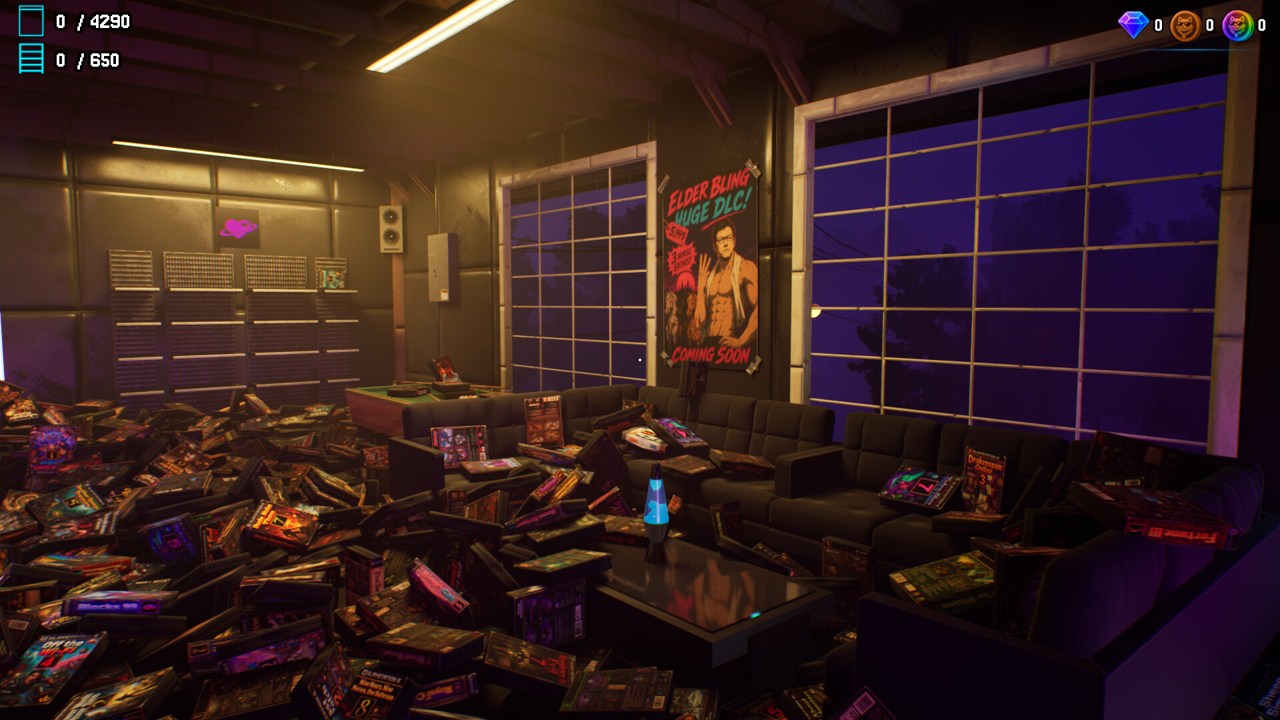
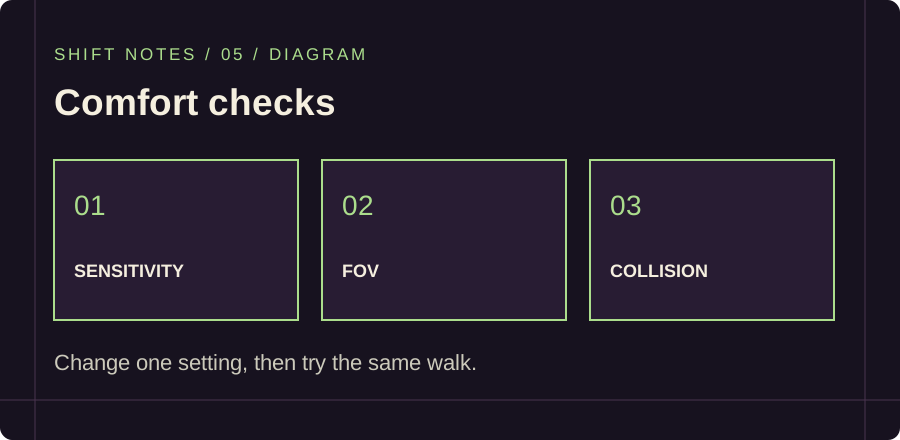
The developer identifies collision with boxes as a cause of walking-camera shake and adds the toggle for it. Inspect that setting first if the camera jolts as you move through piles of cases. Turning off collision is a targeted check tied to the patch; it is not a promise to remove every source of motion discomfort.
Then adjust sensitivity in small steps. Try the same short walk and shelf interaction after each change so that you can tell whether aiming improved. If you also change field of view, test it separately. The fixed FOV-loading bug means your choice should no longer reset for that particular documented reason; an unexpected reset in a current save deserves a fresh report.
Patch 1.3 improves crosshair visibility and lighting in dark areas. Update before trying to compensate for an older dim scene by changing unrelated system settings. These are game-level adjustments, so there is no reason to begin with Windows security changes or unofficial modification tools.
Missing hover text at 30 FPS
A current player report says case title information fails to appear with a 30 FPS limit, while other values show it normally. There is no developer reply confirming the cause or a permanent repair in the checked thread.
If your symptom matches, note the current limit and test another available in-game limit temporarily. That is a reversible comparison suggested by the report, not a validated universal fix. If the text returns, include the two settings and your installed version when reporting it. If it does not, check the target and crosshair instead of continuing to assume the frame limit is responsible.
PC requirements and performance expectations
The official minimum lists Windows 10/11 64-bit, an Intel Core i3-6100 or Ryzen 3 1200, 8 GB RAM, a GTX 1060 or RX 580, DirectX 12 and 5 GB of available storage. Recommended hardware is an i5-8400 or Ryzen 5 2600, 16 GB RAM and an RTX 3060 or RX 6600 XT. VR is listed as unsupported.
Those requirements are compatibility guidance, not a guarantee of a particular frame rate. The 1.3 announcement includes optimization improvements, especially on LOW settings. If performance is poor, use the game's graphics options and compare a repeatable scene. Record the hardware, setting and symptom before drawing conclusions from another player's machine.
Saving problems need their own diagnosis
One Steam Cloud thread reports a blank load screen after synchronization. Its author says disabling Steam Cloud in the game's Properties, General section made local saves work. This is a single user's workaround, not a developer-confirmed repair, and disabling sync does not recover a damaged file by itself.
Preserve your existing save before experimenting with synchronization. Check Steam's displayed sync state, avoid overwriting a newer local save with an older copy, and ask for help if the available copies conflict. A separate exit-and-save report has no verified answer; the Cloud workaround cannot be assumed to fix every saving problem.
For blocked placement or missing objects, continue with missing-cases checks. For the game's documented update history, use the official 1.3 announcement.
KEEP EXPLORING
Further reading
Steam game page · Update 1.3 · Community: keyboard inputs · Community: sensitivity · Community: hover text at 30 FPS · Community: Cloud save report · Community: exit and save report